Windows · Linux · Horizon · VNC

Desktop & VDI Logon

A second factor at workstation and virtual desktop sign-in — including offline modes for laptops and field devices that spend the week away from your network.

Windows logon with MFA, end to end. Click the diagram to enlarge.
The challenge

Why this one is hard.

The workstation is the first thing an attacker wants and the last thing most MFA projects cover. Once someone is logged in at the desktop, every cached credential, mapped drive and saved session is available to them.

Desktops are also where MFA projects hit their hardest practical problem: the machine that has no network connection at the moment the user needs to log in. A plant floor, a branch with a dead link or a laptop in transit all break an authentication design that assumes connectivity.

What changes

BeforeAfter
A cached domain password unlocks the whole workstation.The workstation needs the user's registered device as well.
Field devices are exempted because they have no signal.Six offline modes cover them without an exception.
Users with two phones are a support problem.End-point selection lets them authenticate with whichever device they carry.
How it works

Four steps from decision to evidence.

01

Install

A lightweight credential provider is deployed to Windows, Linux and virtual desktop images through your existing software distribution.

02

Enrol

Users self-enrol through a QR-based portal, registering one or more devices they actually carry.

03

Authenticate

At logon the user approves out of band — or, with no connectivity, reads an offline code from their device.

04

Control

Policy decides which machines, which users and which conditions require a second factor.
Capabilities

What you get.

  • MFA at Windows, Linux and virtual desktop sign-in
  • Offline authentication modes needing no mobile internet
  • Coverage for VMware Horizon and VNC sessions
  • Protection at privilege-elevation prompts as well as interactive logon
  • End-point selection so users can authenticate with whichever device they have
  • Multiple registered devices per user, with nicknames for each
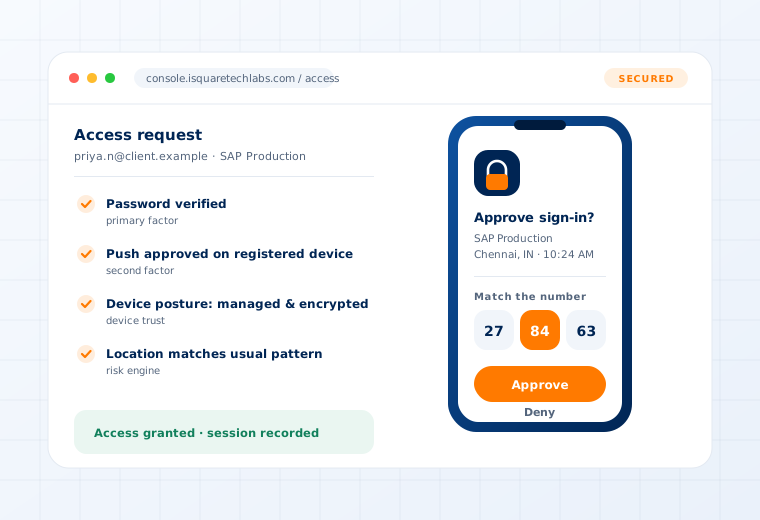
Access request verified through push approval, device posture and location checks

Supported

Operating systems
Windows · Linux
Virtual desktops
VMware Horizon · VNC
Offline modes
CR-OTP (Display) · CR-OTP (SMS / Email) · TOTP · POTP · GRID · FIDO2 token passkey
Deployment
On-Premise · Private Cloud · As a Service
Questions

What buyers ask about this.

If yours is not here, our team will answer it directly.

Ask us
Six of the nine authentication modes are offline and require no mobile internet at all — CR-OTP by display, CR-OTP by SMS or email, TOTP, POTP, GRID and FIDO2 token passkeys. Plant floors, basements and aircraft are all covered.
Yes. Offline modes are designed precisely for that case, and the credential provider caches the policy it needs so a disconnected laptop still enforces the rules you set.
Yes, and most do. End-point selection presents a menu of their registered devices with nicknames they assign themselves — a work phone, a personal phone, a tablet — so they authenticate with whatever they currently have.
Related use cases

Often deployed alongside.

Remote Server Login

RDP · SSH · Jump hosts

Read more

Web Applications

Login · Workflows · Transactions

Read more

See this working on your own systems.

Bring the system you are worried about and we will show you exactly how this control would be applied to it.